Building Containers with Containerfiles
Building basic images with Podman
- A container’s OCI image is a set of immutable layers stacked together with a copy-on-write logic.
- When an image is built, all the layers are created in a precise order and then pushed to the container registry.
- Layers are stored as as tar-based archives and image metadata.
- These manifests are necessary to correctly reassemble the image layers (the image manifest and the image index) and to pass runtime configurations to the container engine (the image configuration).
Containerfiles and Dockerfiles
- Container images can be built in different ways.
- Most common approach is based on Dockerfiles.
Dockerfile
- Main configuration file for Docker builds.
- Plain list of actions to be executed in the build process.
- A standard in OCI image builds and are adopted in many use cases.
Containerfiles
- Name-change of Dockerfiles to move away from the Docker name.
- Same syntax as Dockerfiles and are supported natively by Podman.
- A set of build instructions that the build tool executes sequentially.
- The cached layers have the advantage of being reusable on further builds when no changes are requested on a specific layer.
- Intermediate containers will produce read-only layers merged by the overlay graph driver.
- Users don’t need to manually manage the cached layers.
- The engine automatically implements the necessary actions by creating the temporary containers, executing the actions defined by the Dockerfile instructions, and then committing.
- By repeating the same logic for all the necessary instructions, Podman creates a new image with additional layers on top of the ones of the base image.
- You can squash the image layers into a single one to avoid a negative impact on the overlay’s performance.
- Not all instructions change the filesystem.
- Only the ones that do will create a new image layer. (
RUN,COPY, andADD)
- Only the ones that do will create a new image layer. (
- All the other instructions, such as
CMD, produce an empty layer with metadata only and no changes in the overlay filesystem.- These just create temporary intermediate images and do not impact the final image filesystem.
- Try to keep the number of
RUN,COPY, andADDinstructions limited. - Having images cluttered with too many layers impacts the graph driver performance.
- Containerfile instructions are commands passed to the container engine or build tool.
Containerfile Instructions:
FROM
- Defines the initial base image used to build the container image.
- New layers that hold the changes are cached in intermediate layers, represented by temporary images.
- First instruction of a build stage.
- Defines the base image used as the starting point of the build.
- Automatically pulls image if it is not already on the host.
FROM <image>[:<tag>]syntax.
RUN
- Executes some actions during the build.
- New layers that hold the changes are cached in intermediate layers, represented by temporary images.
RUN: This instruction tells the engine to execute the commands passed as arguments inside a temporary container. This temporary container uses the filesystem of the image you're building. It follows theRUN <command>syntax. The invoked binary or script must exist in the base image or a previous layer.- Frequent practice to concatenate commands into the same
RUNinstruction to avoid cluttering too many layers.
COPY
- Copies files or directories from the build working directory to the image.
- Copies files and folders from the build working directory to the build sandbox.
- Copied resources are persisted in the final image.
COPY <src>… <dest>syntax- Lets us define the destination user and group instead of manually changing ownership later:
--chown=<user>:<group>
CMD
- Defines the command to be executed when the container starts
- Default argument(s) passed to the
ENTRYPOINTinstruction. - Can be a full command or a set of plain arguments to be passed to a custom script or binary set as
ENTRYPOINT. CMD ["command", "param1", "paramN"](the exec form)CMD ["param1, "paramN"](the parameter form, used to pass arguments to a customENTRYPOINT)CMD command param1 paramN(the shell form)
ADD
- Copies files, folders, and remote URLs to the build destination target.
ADD <src>… <dest>syntax.- Supports the automatic extraction of tar files from a source directly into the target path.
ENTRYPOINT
- The executed command in the container.
- Receives arguments from the command line (in the form of
podman run <image> <arguments>) or from theCMDinstruction. - An
ENTRYPOINTimage cannot be overridden from command-line arguments. ENTRYPOINT ["command", "param1", "paramN"](also known as the exec form)ENTRYPOINT command param1 paramN(the shell form)- Default value for
ENTRYPOINTisbash -c.- Commands are passed as an argument to the
bashprocess. For example, if aps auxcommand is passed as an argument at runtime or in aCMDinstruction, the container will executebash -c "ps aux".
- Commands are passed as an argument to the
- A frequent practice is to replace the default
ENTRYPOINTcommand with a custom script that behaves in the same way and offers more granular control of the runtime execution.
LABEL
- Apply custom labels to the image.
- Labels are used as metadata at build time or runtime.
LABEL <key1>=<value1> … <keyN>=<valueN>syntax.
EXPOSE
- Sets metadata about listening ports exposed by the processes running in the container.
EXPOSE <port>/<protocol>- These ports are not forwarded by default when running a container based on the image and require explicit user action.
ENV
- Configures environment variables that will be available to the next build commands and at runtime when the container is executed.
ENV <key1>=<value1>… <keyN>=<valueN>- Environment variables can also be set inside a
RUNinstruction with a scope limited to the instruction itself.
VOLUME
- Set a volume that will be created at runtime during container execution.
- The volume will be automatically mapped by Podman inside the default volume storage directory.
VOLUME ["/path/to/dir"]VOLUME /path/to/dir
USER
- Define the username and user group for the next
RUN,CMD, andENTRYPOINTinstructions when you run the image. - The
GIDvalue is not mandatory. USER <username>:[<groupname>]USER <UID>:[<GID>]
WORKDIR
- Set the working directory during the build process.
- Value is retained during container execution.
WORKDIR /path/to/workdir
ONBUILD
- Trigger command to be executed once an image build has been completed.
- In this way, the image can be used as a parent for a new build by calling it with the
FROMinstruction. - Purpose is to allow the execution of some final command on a child container image.
ONBUILD ADD . /opt/appONBUILD RUN /opt/bin/custom-build /opt/app/src
podman build
- Root image builds are located under
/var/lib/containers/storage/ - Runs Containerfile instructions sequentially and persists the intermediate layers until the final image is committed and tagged.
- These layers remain available as cache so they are available if the image is rebuilt.
- Cached layers can be removed with
podman image prune. - Can build in rootful or rootless mode.
--layers=false
- Squash the current build layers into a single layer.
- Rebuild the image without caching intermediate layers.
- Reducing the number of layers can keep the image minimal in terms of overlays.
- The downside is that you will have to rebuild the whole image for every configuration change without taking advantage of cached layers.
Example
Create a container with workarounds to run httpd as a non-root user inside of the container. Also, redirect logs to the containers stdout and stderr. Have the container expose port 8080:
Containerfile:
HTML:
entrypoint.sh:
- Test whether the container is executed as root.
- Check the first
CMDargument – if the argument ishttpd, execute thehttpd -DFOREGROUNDcommand; otherwise, it lets you execute any other command (a shell, for example).
Inspect an image’s history and the actions that have been applied to every layer:
Run the built image:
Verify it is running:
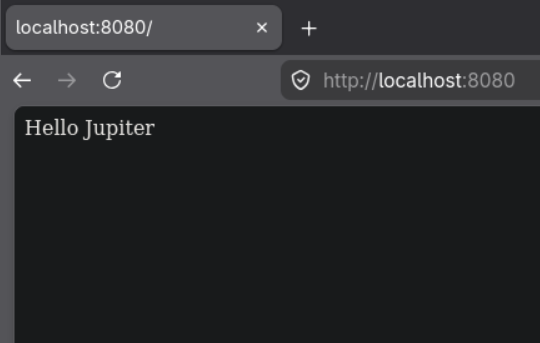
Now you can visit your web browser to see the served webpage:
The newly built image will be available in the local host cache:
Check out the 5 layers created:
View the layers with podman image tree:
Build the image with only the fedora layer, and the remaining layers squashed together:
View our two layers: