Basic Package Management
RPM (Redhat Package Manager)
- Specially formatted File(s) packaged together with the .rpm extension.
- Packages included or available for RHEL are in rpm format.
- Metadata info gets updated whenever a package is updated.
rpm command
- Install, Upgrade, remove, query, freshen, or decompress packages.
- Validate package authenticity and integrity.
Packages
- Two types of packages binary (or installable) and source.
Binary packages
- Installation ready
- Bundled for distribution.
- Have .rpm extension.
- Contain:
- install scripts (pre and post)
- Executables
- Configuration files
- Library files
- Dependency information
- Where to install files
- Documentation
- How to install/uninstall
- Man pages for config files/commands
- Other install and usage info
- Metadata
- Stored in central location
- Includes:
- Package version
- Install location
- Checksum values
- List of included files and their attributes
- Package intelligence
- Used by package administration toolset for successful completion of the package installation process.
- May include info on:
- prerequisites
- User account setup
- Needed directories/ soft links
- Includes reverse process for uninstall
Package Naming
5 parts to a package name: 1. Name 2. Version 3. release (revision or build) 4. Linux version 5. Processor Architecture - noarch - platform independant - src - Source code packages
- Always has .rpm extension
- .rpm is removed after install Example: openssl-1.1.1-8.el8.x86_64.rpm,
Package Dependency
- Dependency info is in the metadata
- Read by package handling utilities
Package Database
- Metadata for installed packages and package files is stored in /var/lib/rpm/
- Package database
- Referenced by package manipulation utilities to obtain:
- package name and version data
- Info about owerships, permissions, timestamps, and file sizes that are part of the package.
- Contain info on dependencies.
- Aids management commands in:
- listing and querying packages
- Verifying dependencies and file attributes.
- Installing new packages.
- Upgrading and uninstalling packages.
- Removes and replaces metadata when a package is replaced.
- Can maintain multiple version of a single package.
Package Management Tools
- rpm (redhat package manager)
- Does not automatically resolve dependencies.
- yum (yellowdog update, modified)
- Find, get, and install dependencies automatically.
- softlink to dnf now.
- dnf (dandified yum)
Package management with rpm
rpm package management tasks: - query - install - upgrade - freshen - overwrite - remove - extract - validate - verify
- Works with installed and installable packages.
rpm command
Query options
Query and display packages
-q (--query)
List all installed packages
-qa (--query --all)
List config files in a package
-qc (--query --config-files)
List documentation files in a package
-qd (--query --docfiles)
Exhibit what package a file comes from
-qf (--query --file)
Show installed package info (Version, Size, Installation status, Date, Signature, Description, etc.)
-qi (--query --info)
Show installable package info (Version, Size, Installation status, Date, Signature, Description, etc.)
-qip (--query --info --package)
List all files in a package.
-ql (--query --list)
List files and packages a package depends on.
-qR (--query --requires)
List packages that provide the specified package or file.
-q --whatprovides
List packages that require the specified package or file.
-q --whatrequires
Package installation options
Remove a package
-e (--erase)
Upgrades installed package. Or loads if not installed.
-U (--upgrade)
Display detailed information
-v (--verbose or -vv)
Verify integrity of a package or package files
-V (--verify)
Querying packages
Query packages in the package database or at a specified location.
Installing a package
- Creates directory structure needed
- Installs files
- Runs needed post installation steps
- Installing package will fail if missing dependencies.
- Error message will show missing dependencies.
Upgrading a package
- Installs the package if previous version does not exist. (-U)
- Makes backup of effected configuration files and adds .rpmsave extension.
Freshening a package
- Older version must exist.
- -F option
- Will only work if a newer version of a package is available.
Overwriting a Package
- Replaces existing files of a package with the same version.
- –replacepkgs option.
- Useful when you suspect corruption.
Removing a Package
- Uninstalls package and associated files/ directories
- -e Option
- Checks to see if this package is a dependency for another program and fails if it is.
Extracting Files from an Installable Package
rpm2cpiocommand- -i (extract)
- -d create directory structure.
Useful for:
- Examining package contents.
- Replacing corrupt or lost command.
- Replace critical configuration file to it’s original state
Package Integrity and Credibility
- MD5 Checksum for verifying package integrity
- GNU Privacy Guard Public Key (GNU Privacy Guard or GPG) for ensuring credibility of publisher.
- PGP (Pretty Good Privacy) - commercial version of GPG.
--nosignature- Don’t verify package or header signatures when reading.
-K- keep package files after installation
rpmkeyscommand - check credibility, import GPG key, and verify packages
- keep package files after installation
- Redhat signs their products and updates with a GPG key.
- Files in installation media include public keys in the products for verification.
- Copied to /etc/pki/rpm-gpg during OS installation.
RPM-GPG-KEY-redhat-release
- Used for packages shipped after November 2009 and their updates. RPM-GPG-KEY-redhat-beta
- For Beta products shipped after November 2009.
- Import the relevant GPG key and the verify the package to check the credibility of a package.
Viewing GPG Keys
- view with rpm command
rpm -q gpg-pubkey -ioption- show info about a key.
Verifying Package Attributes
- Compare package file attributes with originals stored in package database at the time of installation.
-Voption- compare owner, group, permission mode, size, modification time, digest, type, etc.
- Returns to prompt if no changes are detected
- -v or vv for verbose
-Vf- run the check directly on the file
- Three columns of output:
- Column 1
- 9 fields
- S = Different file size.
- M = Mode or permission or file type change.
- 5 = MD5 Checksum does not match.
- D = Device file and its major and minor number have changed.
- L = File is a symlink and it’s path has been altered.
- U = Ownership has changed.
- G = Group membership has been modified.
- T = Timestamp changed.
- P = Capabilities are altered.
- . = No modifications detected.
- 9 fields
- Column 2
- File type
- c = Configuration file
- d = Documentation File
- g = Ghost FIle
- l = License file
- r = Readme file
- File type
- Column 3
- Full path of file
- Column 1
Basic Package Management Labs
Lab: Mount RHEL 9 ISO Persistently
-
Go to the VirtualBox VM Manager and make sure that the RHEL 8 image is attached to RHEL9-VM1 as depicted below:
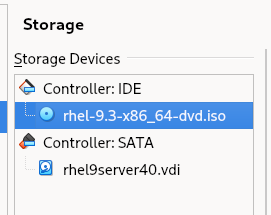
-
Open the /etc/fstab file in the vim editor (or another editor of your choice) and add the following line entry at the end of the file to mount the DVD image (/dev/sr0) in read-only (ro) mode on the /mnt directory.
Note: sr0 represents the first instance of the optical device and iso9660 is the standard format for optical file systems.
-
Mount the file system as per the configuration defined in the /etc/fstab file using the mount command with the -a (all) option:
-
Verify the mount using the df command:
Note: The image and the packages therein can now be accessed via the /mnt directory just like any other local directory on the system.
-
List the two directories—/mnt/BaseOS/Packages and /mnt/AppStream/Packages—that contain all the software packages (directory names are case sensitive):
Lab: Query Packages (RPM)
-
query all installed packages:
rpm -qa -
query whether the perl package is installed:
rpm -q perl -
list all files in a package:
rpm -ql iproute -
list only the documentation files in a package:
rpm -qd audit -
list only the configuration files in a package:
rpm -qc cups -
identify which package owns the specified file:
rpm -qf /etc/passwd -
display information about an installed package including version, release, installation status, installation date, size, signatures, description, and so on:
rpm -qi setup -
list all file and package dependencies for a given package:
rpm -qR chrony -
query an installable package for metadata information (version, release, architecture, description, size, signatures, etc.):
rpm -qip /mnt/BaseOS/Packages/zsh-5.5.1-6.el8.x86_64.rpm -
determine what packages require the specified package in order to operate properly:
rpm -q --whatrequires lvm2
Lab: Installing a Package (RPM)
- Install zsh-5.5.1-6.el8.x86_64.rpm
sudo rpm -ivh /mnt/BaseOS/Packages/zsh-5.5.1-6.el8.x86_64.rpm
Lab: Upgrading a Package (RPM)
- Upgrade sushi with the -U option:
sudo rpm -Uvh /mnt/AppStream/Packages/sushi-3.28.3-1.el8.x86_64.rpm
Lab: Freshening a Package
- Freshen the sushi package:
sudo rpm -Fvh /mnt/AppStream/Packages/sushi-3.28.3-1.el8.x86_64.rpm
Lab: Overwriting a Package
- Overwrite zsh-5.5.1-6.el8.x86_64
sudo rpm -ivh --replacepkgs /mnt/BaseOS/Packages/zsh-5.5.1-6.el8.x86_64
Lab: Removing a Package
- Remove sushi
sudo rpm sushi -ve
Lab: Extracting Files from an Installable Package
-
You have lost /etc/crony.conf. Determine what package this file comes from:
rpm -qf /etc/chrony.conf -
Extract all files from the crony package to /tmp and create the directory structure:
-
Use find to locate the crony.conf file:
sudo find . -name chrony.conf -
Copy the file to /etc:
Lab: Validating Package Integrity and Credibility
- Check the integrity of zsh-5.5.1-6.el8.x86_64.rpm located in /mnt/BaseOS/Packages:
rpm -K /mnt/BaseOS/Packages/zsh-5.5.1-6.el8.x86_64.rpm --nosignature - Import the GPG key from the proper file and verify the signature for the zsh-5.5.1-6.el8.x86_64.rpm package.
Lab: Viewing GPG Keys
- List the imported key:
rpm -q gpg-pubkey - View details for the first key:
rpm -qi gpg-pubkey-fd431d51-4ae0493b
Lab: Verifying Package Attributes
-
Run a check on the at program:
sudo rpm -V at -
Change permissions of one of the files and run the check again:
-
Run the check directly on the file:
sudo rpm -Vf /etc/sysconfig/atd -
Reset the value and check the file again:
Lab: Perform Package Management Using rpm
- Run the
lscommand on the /mnt/AppStream/Packages directory to confirm that the rmt package is available:
- Run the rpm command and verify the integrity and credibility of the package:
- Install the Package:
- Show basic information about the package:
- Show all the files the package contains:
- List the documentation files the package has:
- Verify the attributes of each file in the package. Use verbose mode.
- Remove the package:
Lab 9-1: Install and Verify Packages
As user1 with sudo on server3,
- make sure the RHEL 9 ISO image is attached to the VM and mounted.
- Use the rpm command and install the zsh package by specifying its full path.
- Run the rpm command again and perform the following on the zsh package:
- (1) show information
- (2) validate integrity
- (3) display attributes
[root@server30 Packages]# rpm -V zsh
Lab 9-2: Query and Erase Packages
As user1 with sudo on server3,
- make sure the RHEL 9 ISO image is attached to the VM and mounted.
- Use the rpm command to perform the following:
- (1) check whether the setup package is installed
- (2) display the list of configuration files in the setup package
- (3) show information for the zlib-devel package on the ISO image
- (4) reinstall the zsh package (–reinstall -vh),
- (5) remove the zsh package.
[root@server30 Packages]# rpm -e zsh