Using Variables In Ansible
Using and working with variables
- Capture command output using register
Variables
Three types of variables:
- Fact
- Variable
- Magic Variable
Variables make Ansible really flexible. Especially when used in combination with conditionals. These are defined at the discretion of the user.:
Working with Variables
- Variables can be used to refer to a wide range of dynamic data, such as names of files, services, packages, users, URLs to specific servers, etc.
Defining Variables
To define a variable
- key: value structure in a vars section in the play header.
- As the variable is the first item in the value, its name must be placed between double curly brackets as well as double quotes.
Variable requirements:
• Must start with a letter. • Case sensitive. • Can contain only letters, numbers, and underscores.
Using Include Files
- It is common to define variables in include files. Specific host and host group variables can be used as include files
- it’s also possible to include an arbitrary file as a variable file, using the vars_files: statement.
- The vars_files: parameter can have a single value or a list providing multiple values. If a list is used, each item needs to start with a dash
- When you include variables from files, it’s a good idea to work with a separate directory that contains all variables because that makes it easier to manage as your projects grow bigger.
vars/common
- If variables are defined in individual playbooks, they are spread all over, and it may be difficult to get an overview of all variables that are used on a site.
Managing Host and Group Variables
host_vars and group_vars
- set variables for specific hosts or specific host groups.
- In older versions of Ansible, it was common to set host variables and group variables in inventory, but this practice is now deprecated.
host_vars
- Must create a subdirectory with the name host_vars within the Ansible project directory.
- In this directory, create a file that matches the inventory name of the host to which the variables should be applied.
- So the variables for host ansible1 are defined in host_vars/ansible1.
group_vars
- Must create a directory with the name group_vars.
- In this directory, a file with the name of the host group is created, and in this file all variables are defined.
- ie: group_vars/webservers
If no variables are defined at the command prompt, it will use the variable set for the play. You can also define the variables with the -e flag when running the playbook:
LAB: Using Host and Host Group Variables
1. Create a project directory in your home directory. Type mkdir ~/chapter6 to create the chapter6 project directory, and use cd ~/chapter6 to go into this directory.
2. Type cp ../ansible.cfg . to copy the ansible.cfg file that you used before. No further modifications to this file are required.
3. Type vim inventory to create a file with the name inventory, and ensure it has the following contents:
4. Create the file webservers.yaml, containing the following contents. Notice that nothing is really changed by running this playbook. It just uses the debug module to show the current value of the variables.
5. Create the file group_vars/webservers with the following contents:
6. Run the playbook with some verbosity to verify it is working by using ansible-playbook -vv webservers.yaml
Using Multivalued Variables
Two types of multivalued variables:
array (list)
- key that can have multiple items as its value.
- Each item in a list starts with a dash (-).
- Individual items in a list can be addressed using the index number (starting at zero), as in {{ users[1] }} (which would print the key-value pairs that are set for user lisa)
dictionary (hash)
- Unordered collection of items, a collection of key-value pairs.
- In Python, a dictionary is defined as my_dict = { key1: ‘car’, key2:‘bike’ }.
- Because it is based on Python, Ansible lets users use dictionaries as an alternative notation to arrays
- not as common in use as arrays.
- Items in values in a dictionary are not started with a dash.
Addressing Specific Keys in a Dictionary Multivalued Variable:
Using the Square Brackets Notation to Address Multivalued Variables (recommended method)
Magic Variables
- Variables that are set automatically by Ansible to reflect an Ansible internal state.
- There are about 30 magic variables
- Common Magic Variables
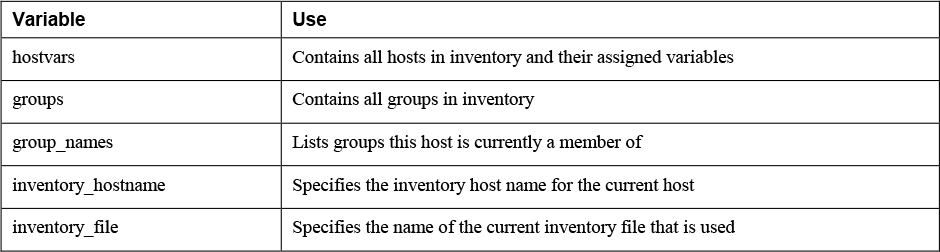
- you cannot use their name for anything else.
- If you try to set a magic variable to another value anyway, it always resets to the default internal value.
Debug module can be used to show the current values assigned to the hostvars magic variable.
- Shows many settings that you can change by modifying the ansible.cfg configuration file.
- If local facts are defined on the host, you will see them also.
Variable Precedence
- Avoid using variables with the same names that are defined at different levels.
- If a variable with the same name is defined at different levels, the most specific variable always wins.
- Variables that are defined while running the playbook command using the -e key=value command-line argument have the highest precedence.
- After variables that are passed as command-line options, playbook variables are considered.
- Next are variables that are defined for inventory hosts or host groups.
- Consult the Ansible documentation item “Variable precedence” for more details and an overview of the 22 different levels where variables can be set and how precedence works for them.
1. Variables passed on the command line 2. Variables defined in or included from a playbook 3. Inventory variables
Capturing Command Output Using register
The result of commands can also be used as a variable byusing the register parameter in a task.
The cat /etc/passwd command is executed by the shell module. Notice that in this playbook no names are used for tasks. Using names for tasks is
not mandatory; it’s just recommended in more complex playbooks because this convention makes identification of the tasks easier. The entire contents of the command are next stored in the variable passwd_contents.
This variable contains the output of the command, stored in different keys. Table 6-7 provides an overview of the most
useful keys, and Listing 6-19 shows the partial result of the ansible-playbook listing618.yaml command.
Keys Used with register cmd
- Command that was used rc
- Return code of the command stderr
- Error messages stderr_lines
- Errors line by line stdout
- command output stdout_line
- Command output line by line
Ensure that a task runs only if a command produces a specific result by using register with conditionals.
register shows the values that are returned by specific tasks. Tasks have common return values, but modules may have specific return values. That means you cannot assume, based on the result of an example using a specific module, that the return values you see are available for all modules. Consult the module documentation for more information about specific return values.
Ansible Facts
An Ansible fact is a variable that contains information about a target system.This information can be used in conditional statements to tailor playbooks to that system. Systems facts are system property values. Custom facts are user-defined variables stored on managed hosts. system.
Facts are collected when Ansible executes on the remote system. You’ll see a “Gathering Facts” task everytime you run a playbook. These facts are then stored in the variable ansible_facts.
Use the debug module to check the value of variables. This module requires variables to be enclosed in curly brackets. This example shows a large list of facts from managed nodes:
There are two supported formats for using Ansible fact variables:
It’s recommended to use square brackets: ansible_facts['default_ipv4']['address'] but dotted notation is also supported for now: ansible_facts.default_ipv4.address
Commonly used ansible_facts:
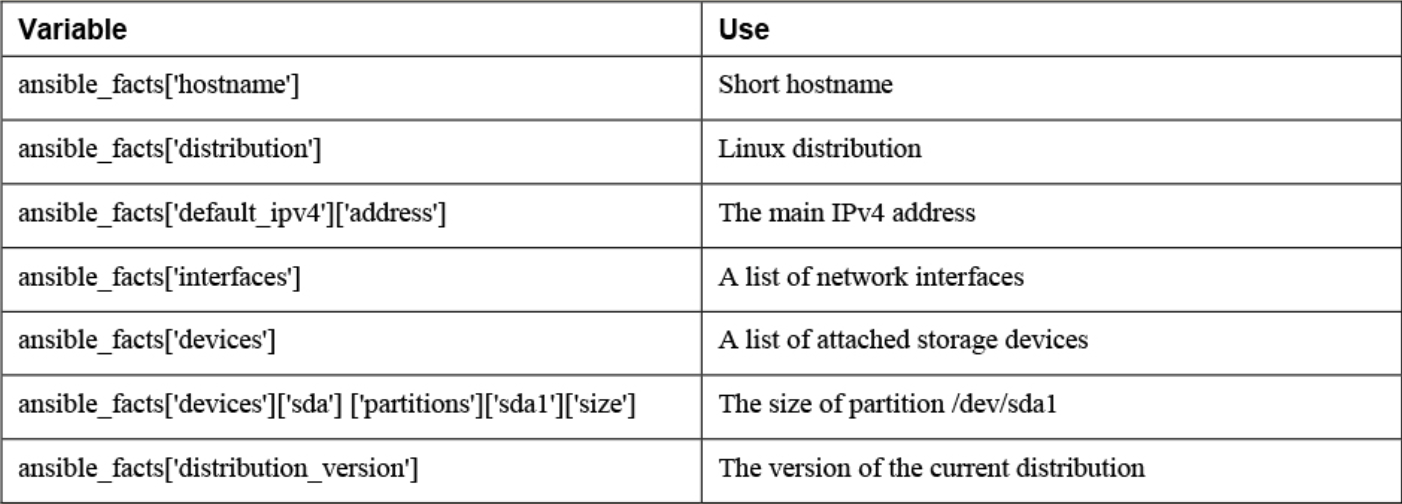
There are additional Ansible modules for gathering more information. See `ansible-doc -l | grep fact
package_facts module collects information about software packages installed on managed hosts.
Two ways facts are displayed
Ansible_facts variable (current way)
- All facts are stored in a dictionary with the name ansible_facts, and items in this dictionary are addressed using the notation with square brackets
- ie:
ansible_facts['distribution_version'] - Recommended to use this.
injected variables (old way)
-
Variable are prefixed with the string ansible_
-
Will lose support eventually
-
Old approach and the new approach both still occur.
ansible ansible1 -m setupcommand Ansible facts are injected as variables.
Comparing ansible_facts Versus Injected Facts as Variables
Note: When you search facts such as default_ipv4, the fact will say ansible_default_ipv4. You must use default_ipv4 instead.
Different notations can be used in either method, the listings address the facts in dotted notation, not in the notation with square brackets.
Addressing Facts with Injected Variables:
Addressing Facts Using the ansible_facts Variable
If, for some reason, you want the method where facts are injected into variables to be the default method, you can use inject_facts_as_vars=true in the [default] section of the ansible.cfg file.
• In Ansible versions since 2.5, all facts are stored in one variable: ansible_facts. This method is used while gathering facts from a playbook.
• Before Ansible version 2.5, facts were injected into variables such as ansible_hostname. This method is used by the setup module. (Note that this may change in future versions of Ansible.)
• Facts can be addressed in dotted notation:
{{ansible_facts.default_ipv4.address }}
• Alternatively, facts can be addressed in square brackets notation:
{{ ansible_facts['default_ipv4']['address'] }}. (preferred)
Managing Fact Gathering
By default, upon execution of each playbook, facts are gathered. This does slow down playbooks, and for that reason, it is possible to disable fact gathering completely. To do so, you can use the gather_facts: no parameter in the play header. If later in the same playbook it is necessary to gather facts, you can do this by running the setup module in a task.
Even if it is possible to disable fact gathering for all of your Ansible configuration, this practice is not recommended. Too many playbooks use conditionals that are based on the current value of facts, and all of these conditionals would stop working if fact gathering were disabled altogether.
As an alternative to make working with facts more efficient, you can disable a fact cache. To do so, you need to install an external plug-in. Currently, two plug-ins are available for this purpose: jsonfile and redis. To configure fact caching using the redis plug-in, you need to install it first. Next, you can enable fact caching through ansible.cfg.
The following procedure describes how to do this:
1. Use yum install redis.
2. Use service redis start.
3. Use pip install redis.
4. Edit /etc/ansible/ansible.cfg and ensure it contains the following parameters:
Note
Fact caching can be convenient but should be used with caution. If, for instance, a playbook installs a certain package only if a sufficient amount of disk space is available, it should not do this based on information that may be up to 24 hours old. For that reason, using a fact cache is not recommended in many situations.
Custom Facts
-
Used to provide a host with arbitrary values that Ansible can use to change the behavior of plays.
-
can be provided as static files.
-
files must
- be in either INI or JSON format,
- have the extension .fact, and
- on the managed hosts must be stored in the /etc/ansible/facts.d directory.
-
can be generated by a script, and
- in that case the only requirement is that the script must generate its output in JSON format.
Dynamic custom facts are useful because they allow the facts to be determined at the moment that a script is running. provides an example of a static custom fact file.
Custom Facts Sample File:
To get the custom facts files on the managed hosts, you can use a playbook that copies a local custom fact file (existing in the current Ansible project directory) to the appropriate location on the managed hosts. Notice that this playbook uses variables, which are explained in more detail in the section titled “Working with Variables.”
Custom facts are stored in the variable ansible_facts.ansible_local. In this variable, you use the filename of the custom fact file and the label in the custom fact file. For instance, after you run the playbook in Listing 6-9, the web_package fact that was defined in listing68.fact is accessible as
{{ ansible_facts[’ansible_local’][’listing67’][’packages’][’web_package’] }}
To verify, you can use the setup module with the filter argument. Notice that because the setup module produces injected variables as a result, the ad hoc command to use is ansible all -m setup -a "filter=ansible_local" . The command ansible all -m setup -a "filter=ansible_facts\['ansible_local'\]" does not work.
Lab Working with Ansible Facts
1. Create a custom fact file with the name custom.fact and the following contents:
2. Write a playbook with the name copy_facts.yaml and the following contents:
3. Apply the playbook using ansible-playbook copy_facts.yaml -i inventory
4. Check the availability of the custom facts by using ansible all -m setup -a "filter=ansible_local" -i inventory
5. Use an ad hoc command to ensure that the httpd service is not installed on any of the managed servers: ansible all -m yum -a "name=httpd state=absent" -i inventory -b
6. Create a playbook with the name setup_with_facts.yaml that installs and enables the httpd service, using the custom facts:
7. Run the playbook to install and set up the service by using ansible-playbook setup_with_facts.yaml -i inventory -b
8. Use an ad hoc command to verify the service is running: ansible ansible1 -a "systemctl status httpd" -i inventory -b
Lab: Configure a playbook that works with custom facts
Requirements: • Use the project directory chapter6. • Create an inventory file where ansible1 is member of the host group named file and ansible2 is member of the host group named lamp. • Create a custom facts file that contains a section named packages and set the following variables:
• Create another custom facts file that contains a section named services and set the following variables:
• Create a playbook with the name copy_facts.yaml that copies these facts to all managed hosts. In this playbook
- Define a variable remote_dir to specify the directory the fact files should be copied to.
- Use the variable fact_file to copy the fact files to the appropriate directories.
- Run the playbook and verify whether it works.
Lab 6-2 After copying over the facts files, create a playbook that uses the facts to set up the rest of the environment.
Requirements: • Use a variable inclusion file with the name allvars.yaml and set the following variables:
• Create a playbook that sets up the file services and the web services. Also ensure the playbook opens the firewalld firewall to provide access to these servers.
• Make sure the webservice provides access to a file index.html, which contains the text “Welcome to the Ansible Web Server.”
• Run the playbook and use ad hoc commands to verify that the services have been started.