Subsections of Control Node
Ansible.cfg
ansible.cfg
You can store this in a project’s directory or a user’s home directory, in the case that multiple user’s want to have their own Ansible configuration. Or in /etc/ansible if the configuration will be the same for every user and every project. You can also specify these settings in Ansible playbooks. The settings in a playbook take precedence over the .cfg file.
ansible.cfg precedence (Ansible uses the first one it finds and ignores the rest.)
- ANSIBLE_CONFIG environment variable
- ansible.cfg in current directory
- ~/.ansible.cfg
- /etc/ansible/ansible.cfg
Generate an example config file in the current directory. All directive are commented out by default:
[ansible@control base]$ ansible-config init --disabled > ansible.cfg
Include existing plugin to the file:
ansible-config init --disabled -t all > ansible.cfg
This generates an extremely large file. So I’ll just show Van Vugt’s example in .ini format:
[defaults] <-- General information
remote_user = ansible <--Required
host_key_checking = false <-- Disable SSH host key validity check
inventory = inventory

[privilege_escalation] <-- Define how ansible user requires admin rights to connect to hosts
become = True <-- Escalation required
become_method = sudo
become_user = root <-- Escalated user
become_ask_pass = False <-- Do not ask for escalation password
Privilege escalation parameters can be specified in ansible.cfg, playbooks, and on the command line.
Optimizing Ansible Processing
Optimizing Ansible Processing
Parallel task execution
- manages the number of hosts on which tasks are executed simultaneously. Serial task execution
- tasks are executed on a host or group of hosts before proceeding to the next host or group of hosts.
Parallel Task Execution
- Ansible can run tasks on all hosts at the same time, and in many cases that would not be a problem because processing is executed on the managed host anyway.
- If, however, network devices or other nodes that do not have their own Python stack are involved, processing needs to be done on the control host.
- To prevent the control host from being overloaded in that case, the maximum number of simultaneous connections by default is set to 5.
- You can manage this setting by using the forks parameter in ansible.cfg.
- Alternatively, you can use the
-foption with theansibleandansible-playbookcommands. - If only Linux hosts are managed, there is no reason to keep the maximum number of simultaneous tasks much lower than 100.
Managing Serial Task Execution
- While executing tasks, Ansible processes tasks in a playbook one by one.
- This means that, by default, the first task is executed on all managed hosts. Once that is done, the next task is processed, until all tasks have been executed.
- There is no specific order in the execution of tasks, so you may see that in one run ansible1 is processed before ansible2, while on another run they might be processed in the opposite order.
- In some cases, this is undesired behavior.
- If, for instance, a playbook is used to update a cluster of hosts this way, this would create a situation where the old software has been updated, but the new version has not been started yet and the entire cluster would be down.
- Use the serial keyword in the play header to configure
- serial: 3
- all tasks are executed on three hosts, and after completely running all tasks on three hosts, the next group of three hosts is handled.
- serial: 3
Lab: Managing Parallelism
- Add two more managed nodes with the names ansible3.example.com and ansible4.example.com.
- Open the inventory file with an editor and add the following lines:
ansible3
ansible4- Open the ansible.cfg file and add the line
forks = 4to the [defaults] section. - Write a playbook with the name exercise102-install that installs and enables the Apache web server and another playbook with the name exercise102-remove that disables and removes the Apache web server.
- Run
ansible-playbook exercise102-remove.yamlto remove and disable the Apache web server on all hosts. This is just to make sure you start with a clean configuration. - Run the playbook to install and run the web server, using
time ansible-playbook exercise102-install.yaml, and notice the time it takes to run the playbook. - Run
ansible-playbook exercise102-remove.yamlagain to get back to a clean state. - Edit ansible.cfg and change the forks parameter to
forks = 2. - Run the
time ansible-playbook exercise102-install.yamlcommand again to see how much time it takes now - Edit the
exercise102-install.yamlplaybook and include the lineserial: 2in the play header. - Run the
ansible-playbook exercise102-remove.yamlcommand again to get back to a clean state. - Run the
ansible-playbook exercise102-install.yamlcommand again and observe that the entire play is executed on two hosts only before the next group of two hosts is taken care of.
Setting up an Ansible Lab
Requirements for Ansible
- Python 3 on control node and managed nodes
- sudo ssh access to managed nodes
- Ansible installed on the Control node
Lab Setup
For this lab, we will need three virtual machines using RHEL 9. 1 control node and 2 managed nodes. Use IP addresses based on your lab network environment:
| Hostname | pretty hostname | ip addreess | RAM | Storage | vCPUs |
|---|---|---|---|---|---|
| control.example.com | control | 192.168.122.200 | 2048MB | 20G | 2 |
| ansible1.example.com | ansible1 | 192.168.122.201 | 2048MB | 20G | 2 |
| ansible2.example.com | ansible2 | 192.168.122.202 | 2048MB | 20G | 2 |
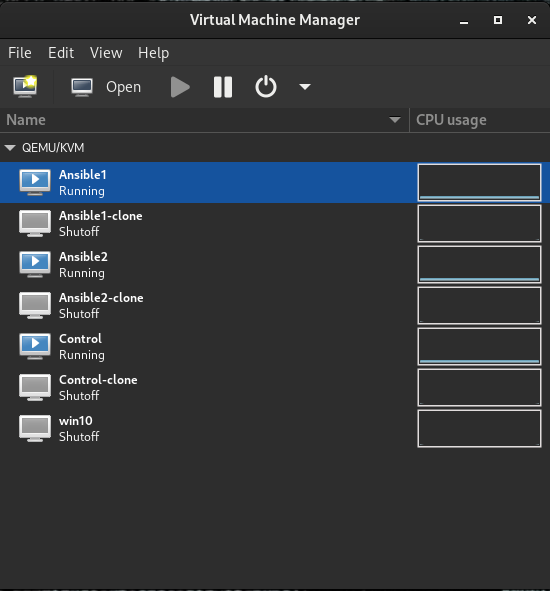
| I have set these VMs up in virt-manager, then cloned them so I can rebuild the lab later. You can automate this using Vagrant or Ansible but that will come later. Ignore the Win10 VM. It’s a necessary evil: |
Setting hostnames and verifying dependencies
Set a hostname on all three machines:
[root@localhost ~]# hostnamectl set-hostname control.example.com
[root@localhost ~]# hostnamectl set-hostname --pretty control
Install Ansible on Control Node
[root@localhost ~]# dnf -y install ansible-core
...
Verify python3 is installed:
[root@localhost ~]# python --version
Python 3.9.18
Configure Ansible user and SSH
Add a user for Ansible. This can be any username you like, but we will use “ansible” as our lab user. Also, the ansible user needs sudo access. We will also make it so no password is required for convenience. You will need to do this on the control node and both managed nodes:
[root@control ~]# useradd ansible
[root@control ~]# visudo
Add this line to the file that comes up:
ansible ALL=(ALL) NOPASSWD: ALL
Configure a password for the ansible user:
[root@control ~]# passwd ansible
Changing password for user ansible.
New password:
BAD PASSWORD: The password is shorter than 8 characters
Retype new password:
passwd: all authentication tokens updated successfully.
On the control node only: Add host names of the nodes to /etc/hosts:
echo "192.168.124.201 ansible1 >> /etc/hosts
> ^C
[root@control ~]# echo "192.168.124.201 ansible1" >> /etc/hosts
[root@control ~]# echo "192.168.124.202 ansible2" >> /etc/hosts
[root@control ~]# cat /etc/hosts
127.0.0.1   localhost localhost.localdomain localhost4 localhost4.localdomain4
::1         localhost localhost.localdomain localhost6 localhost6.localdomain6
192.168.124.201 ansible1
192.168.124.202 ansible2
Log in to the ansible user account for the remaining steps. Note, Ansible assumes passwordless (key-based) login for ssh. If you insist on using passwords, add the –ask-pass (-k) flag to your Ansible commands. (This may require sshpass package to work)
On the control node only: Generate an ssh key to send to the hosts for passwordless Login:
[ansible@control ~]$ ssh-keygen -N "" -q
Enter file in which to save the key (/home/ansible/.ssh/id_rsa):
Copy the public key to the nodes and test passwordless access and test passwordless login to the managed nodes:
^C[ansible@control ~]$ ssh-copy-id ansible@ansible1
/usr/bin/ssh-copy-id: INFO: Source of key(s) to be installed: "/home/ansible/.ssh/id_rsa.pub"
/usr/bin/ssh-copy-id: INFO: attempting to log in with the new key(s), to filter out any that are already installed
/usr/bin/ssh-copy-id: INFO: 1 key(s) remain to be installed -- if you are prompted now it is to install the new keys
ansible@ansible1's password:

Number of key(s) added: 1

Now try logging into the machine, with:   "ssh 'ansible@ansible1'"
and check to make sure that only the key(s) you wanted were added.

[ansible@control ~]$ ssh-copy-id ansible@ansible2
/usr/bin/ssh-copy-id: INFO: Source of key(s) to be installed: "/home/ansible/.ssh/id_rsa.pub"
The authenticity of host 'ansible2 (192.168.124.202)' can't be established.
ED25519 key fingerprint is SHA256:r47sLc/WzVA4W4ifKk6w1gTnxB3Iim8K2K0KB82X9yo.
This key is not known by any other names
Are you sure you want to continue connecting (yes/no/[fingerprint])? yes
/usr/bin/ssh-copy-id: INFO: attempting to log in with the new key(s), to filter out any that are already installed
/usr/bin/ssh-copy-id: INFO: 1 key(s) remain to be installed -- if you are prompted now it is to install the new keys
ansible@ansible2's password:

Number of key(s) added: 1

Now try logging into the machine, with:   "ssh 'ansible@ansible2'"
and check to make sure that only the key(s) you wanted were added.

[ansible@control ~]$ ssh ansible1
Register this system with Red Hat Insights: insights-client --register
Create an account or view all your systems at https://red.ht/insights-dashboard
Last failed login: Thu Apr  3 05:34:20 MST 2025 from 192.168.124.200 on ssh:notty
There was 1 failed login attempt since the last successful login.
[ansible@ansible1 ~]$
logout
Connection to ansible1 closed.
[ansible@control ~]$ ssh ansible2
Register this system with Red Hat Insights: insights-client --register
Create an account or view all your systems at https://red.ht/insights-dashboard
[ansible@ansible2 ~]$
logout
Connection to ansible2 closed.
Install lab stuff from the RHCE guide:
sudo dnf -y install git
[ansible@control base]$ cd

[ansible@control ~]$ git clone https://github.com/sandervanvugt/rhce8-book
Cloning into 'rhce8-book'...
remote: Enumerating objects: 283, done.
remote: Counting objects: 100% (283/283), done.
remote: Compressing objects: 100% (233/233), done.
remote: Total 283 (delta 27), reused 278 (delta 24), pack-reused 0 (from 0)
Receiving objects: 100% (283/283), 62.79 KiB | 357.00 KiB/s, done.
Resolving deltas: 100% (27/27), done.